

A spreadsheet has no diary, so Robyn can’t book from it. She uses it to work out who’s due back and to draft their texts in the Message Queue.
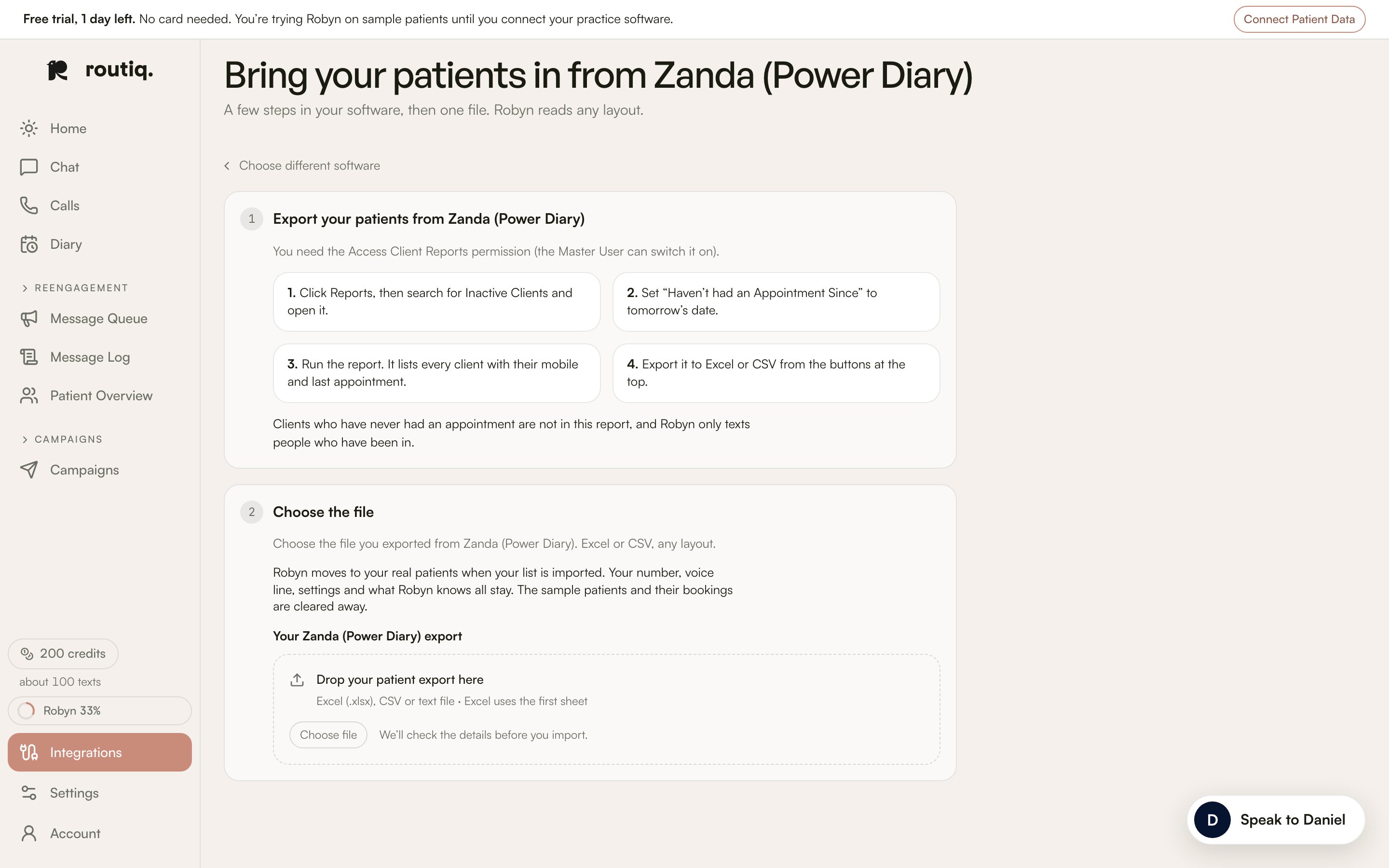
An example of the guided patient export instructions for Zanda. All patient data shown is fictional.
Before you start
- You need to be an owner or admin.
- Save your list as a CSV file. Excel files won’t open: save as CSV first.
- Follow the file-size limit shown during upload.
- A patient export can replace Routiq Demo. If another patient source is connected, follow the connection page before switching.
Import your list
Open Integrations and choose your software. Export guides are available for Zanda, Jane, Halaxy, Nookal, Splose, Coreplus and Gensolve; choose Something else for another system. Follow its export steps. You can also press Upload a spreadsheet in the Set up card on Home.1
Upload
Drop your file where it says “Drop your patient export here”, or pick it from your computer. Nothing is imported yet.
2
Match the columns
Tell Robyn what each column holds. She suggests matches first, so check each one. Any column she doesn’t recognise says What is this?. Pick what it means, or leave it. Nothing imports on a guess.
3
Check
Robyn shows how many people will be imported, how many are ready to text, and how many come with a note, such as a missing mobile. When it looks right, press the Import button. It shows the count, for example “Import 1,284”.